 PebbleTape by HandyPebble
Windows 10/11 · x64 · Version 0.2.0
Your computer day,
remembered locally.
A clear timeline. A native Windows workspace. No account or cloud.
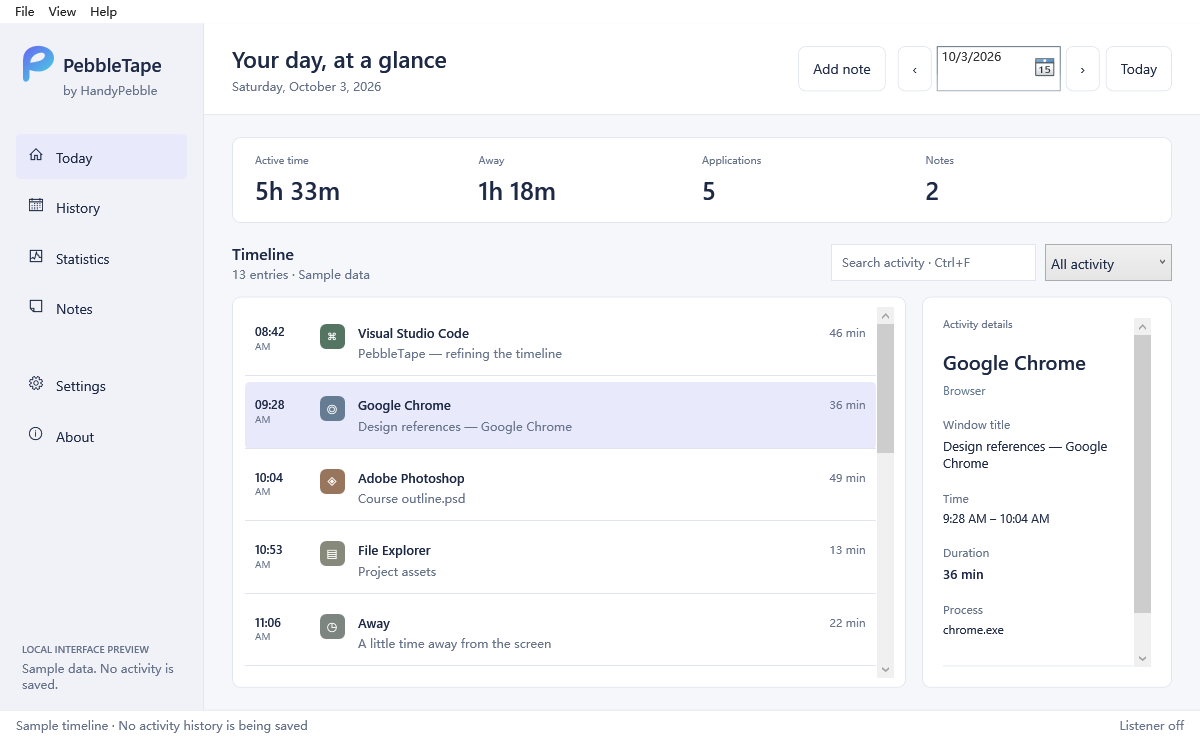
See where your day actually went. PebbleTape records foreground application time on your PC, saves an encrypted history, and keeps your timeline behind a password. No productivity scores—just a record you can interpret for yourself.
Get PebbleTape for Windows
The installer includes the .NET runtime and database components. You do not need to install .NET, WebView2, or a database server separately. Recording and history work without an internet connection.
This compatibility package has been confirmed to start on a Windows 10 21H2 x64 PC where the original package would not open. It leaves hardware-enforced stack protection off for PebbleTape; Windows security settings, database encryption, and password protection are unchanged.
To update an installed copy, choose Exit PebbleTape from its tray menu, then run this installer. There is no need to uninstall first; local data stays outside the program folder.
The installer is not digitally signed. Windows or workplace policy may warn about or block it. Do not disable Windows security; ask your administrator before installing on a work or school PC.
Check the download
SHA-256: 5F36CA05D0D99B14420BF683DC0ED39650F4A551699E37584C42ADF53E2CEC27
A matching hash checks that the download is unchanged. It does not replace a publisher signature.
A familiar desktop, without a setup project.
Install and set your password
Open PebbleTape from the Start menu. Confirm that you want to record foreground application names and time, then set a password of at least 12 characters. Keep it safe: there is no password-recovery service.
Use your computer normally
New activity appears about every 30 seconds. After setup, recording starts when PebbleTape opens without asking for a password by default. The timeline still needs your password. Settings can require a password before recording starts instead.
Review your day
Unlock the timeline, choose a date, search application entries, or add a note. Application time describes the foreground window—not how hard you worked or what you accomplished.
Choose your privacy settings
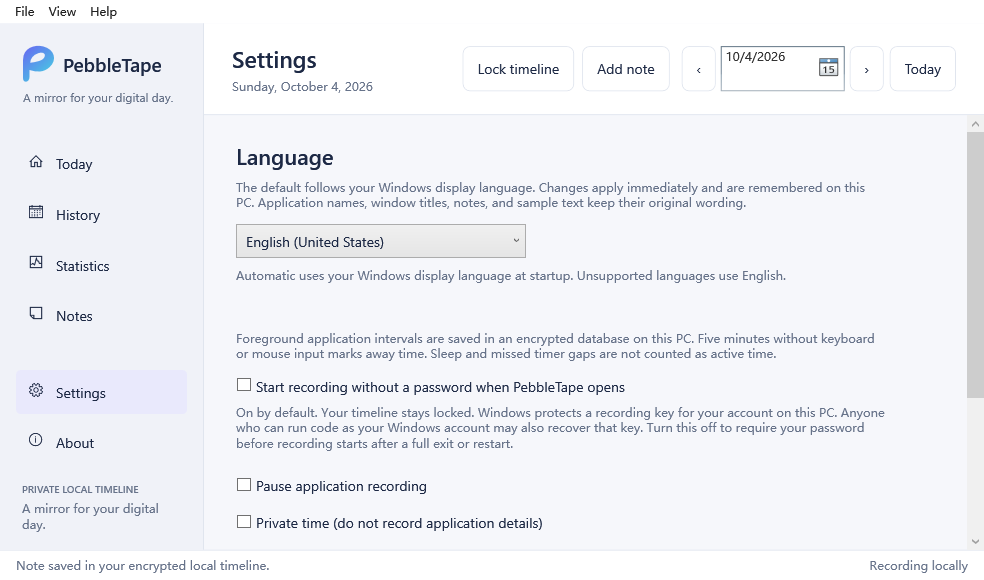
In Settings, pause recording, choose private time, or opt in to saving window titles. Five minutes without keyboard or mouse input marks away time. Hiding the window locks viewing while recording continues in the tray.
Your Windows language, by default
A workspace in your language.
Navigation includes English, Simplified Chinese, Traditional Chinese, Spanish, French, German, Brazilian Portuguese, Japanese, Korean, Russian, Arabic, and Hindi. New recording and password controls currently use English or Simplified Chinese; other languages use English for those controls.
Choose Settings → Language. Automatic follows your Windows display language when supported. Changes apply immediately. Arabic uses a right-to-left layout. Unsupported Windows languages fall back to English; application names and your notes keep their original wording.
A few useful answers
Does PebbleTape need the internet?
Not for recording, history, or notes. There is no startup connection, account, tracking server, or automatic update request. The Visit HandyPebble link opens this website only when you choose it. Updates are manual installer downloads.
Where are my history and notes?
They are saved in an encrypted database under your Windows account’s local app data, in HandyPebble/PebbleTape/data/vault. They remain after you exit. Language preferences are stored separately on this PC.
What does my password protect?
It gates history viewing, notes, and privacy settings in the app. Automatic recording also keeps a Windows-account-protected recording key on this PC. Software running as the same Windows user may recover that key; neither mode protects against an administrator, malware, or someone controlling an unlocked Windows account. Use separate Windows accounts on a shared PC and lock Windows when you step away.
What happens when I close the window?
The app stays in the Windows tray and locks the timeline while background recording continues. Right-click the tray icon to reopen it. Choose Exit PebbleTape to stop the program and recording completely.
How do I uninstall it?
Exit PebbleTape from its tray first. Use the PebbleTape uninstall entry in Windows Settings or the Start menu. The uninstaller removes the program but keeps your encrypted local history, password settings, and language preference.
Will it run on my device?
This package targets Windows 10 and Windows 11 on x64 PCs. It is not a phone app and does not support Windows 7, macOS, or Linux. A clean-device compatibility matrix is still pending.
A mirror, not a score.
Why I’m building PebbleTape around memory, awareness, and private records—not productivity grades.